


You've downloaded your Rosebud game as a Windows .exe. Now what?
This is a guide to the first launch and the small set of Windows-specific gotchas you might hit. Most of this is intuitive, but there's exactly one moment that confuses everyone the first time.
Step 1: Unzip the folder
If you haven't already, extract the zip you received. Right-click and choose Extract All. Pick a destination folder — Desktop, Documents, anywhere you'll find it.
Important: Keep the entire unzipped folder together. The .exe relies on the other files in the folder to run. Don't drag the .exe somewhere else on its own.
Step 2: Double-click the .exe
Open the unzipped folder. Find the file with the .exe extension (usually named after your game). Double-click it.
The first launch may take 5 to 15 seconds longer than later launches. That's normal — Windows is checking the file for the first time.
Step 3: Get past the SmartScreen warning
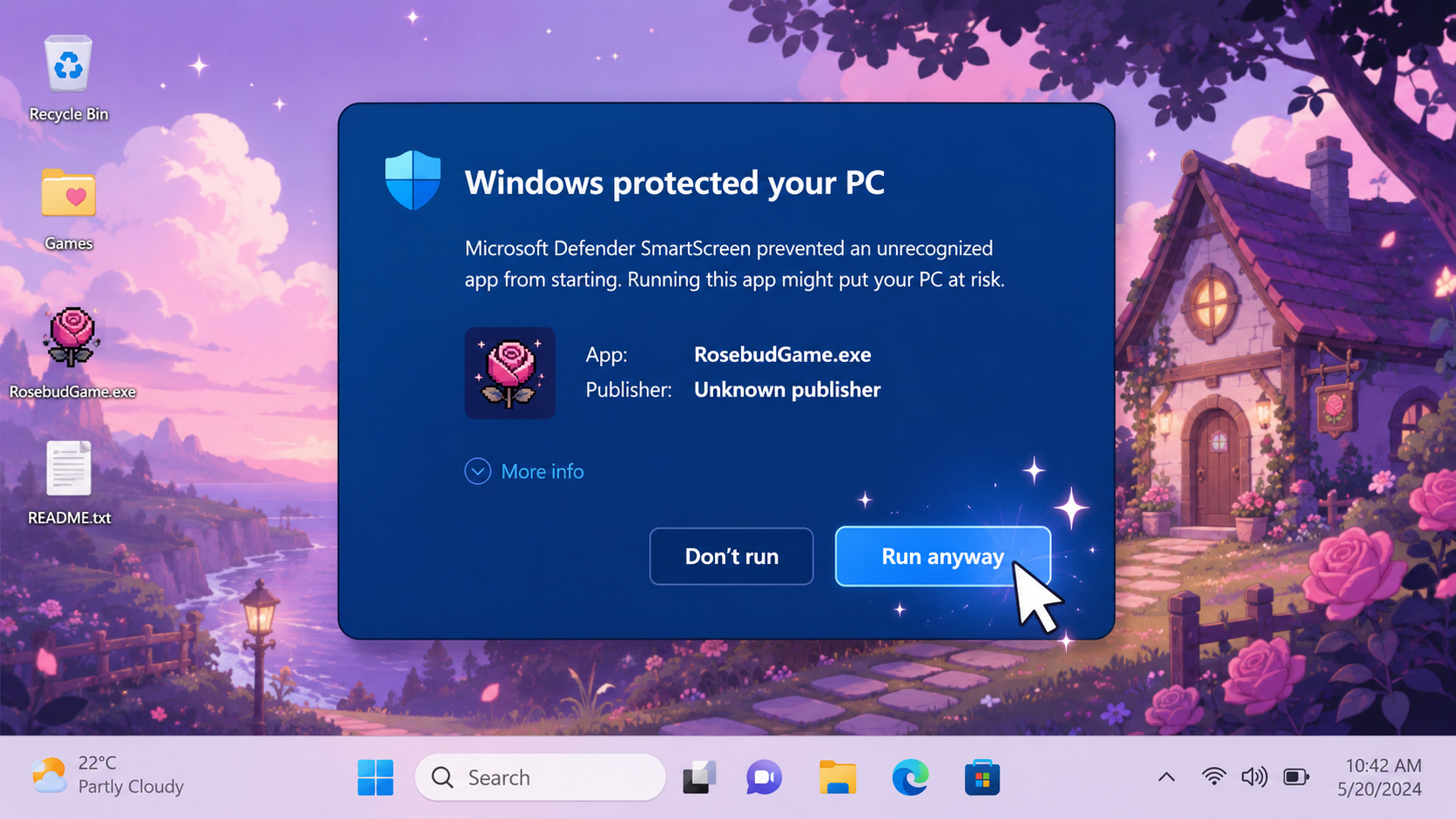
When you double-click an unsigned .exe, Windows shows a blue popup that says "Windows protected your PC" with a generic "Don't run" button.
This is not a virus warning. It's Windows being cautious about any app that isn't signed by a Microsoft-approved certificate. Code signing certificates cost hundreds of dollars per year and aren't included with most indie tooling — so virtually every solo indie developer hits the same warning.
To get past it: click More info at the top of the popup, then click the Run anyway button at the bottom. That's it. You only have to do this once per machine. Windows remembers from the second launch onward.
Step 4: Play your game
The game window should now open. Your title bar shows your game's name. Your cursor is locked into your game's input. This is the moment.
Common issues
The game crashed on launch. Most often this means the folder structure got disturbed. Re-extract the original zip into a fresh folder and try again. Don't extract on top of an existing folder.
Antivirus flagged the .exe. Unsigned executables sometimes get false-positive antivirus flags. Add an exception for the folder in your antivirus settings, or scan the file at VirusTotal.com for peace of mind — most legitimate indie builds come back clean.
SmartScreen won't let me past "Don't run." Some corporate or school machines have SmartScreen locked down. Try the build on a personal computer.
The game opens but the screen is black. Wait 10 to 15 seconds. The first launch of any game with 3D content may stall briefly while shaders compile. If it stays black after a minute, the issue is somewhere else.
Graphics look wrong or laggy. Right-click the .exe → Properties → Compatibility → try running in compatibility mode for Windows 8. Some games perform better on older compatibility profiles.
I don't have a .exe yet. See How to Download Your Rosebud Game as a Windows EXE. The download feature is available on Rosebud's paid plans.
Sharing your game with others
Once your game runs on your machine, you can share it with anyone on Windows.
Re-zip the folder: right-click → Send to → Compressed folder. Then share via Dropbox, Google Drive, WeTransfer, or any file host. The recipient unzips and runs the .exe, walking through the same SmartScreen warning the first time.
If you're sharing more publicly than friends and family, consider itch.io or Steam. See: From Rosebud to Steam.

Andi Bucescu
Andi is the Head of Marketing at Rosebud, where she writes about the intersection of AI, creativity, and brand storytelling. She explores how generative AI is reshaping marketing strategies and creative workflows, with a focus on making complex technology accessible and cutting through the noise of modern campaigns. Her perspective is informed by undergraduate research on effective social media content and consumer psychology.