


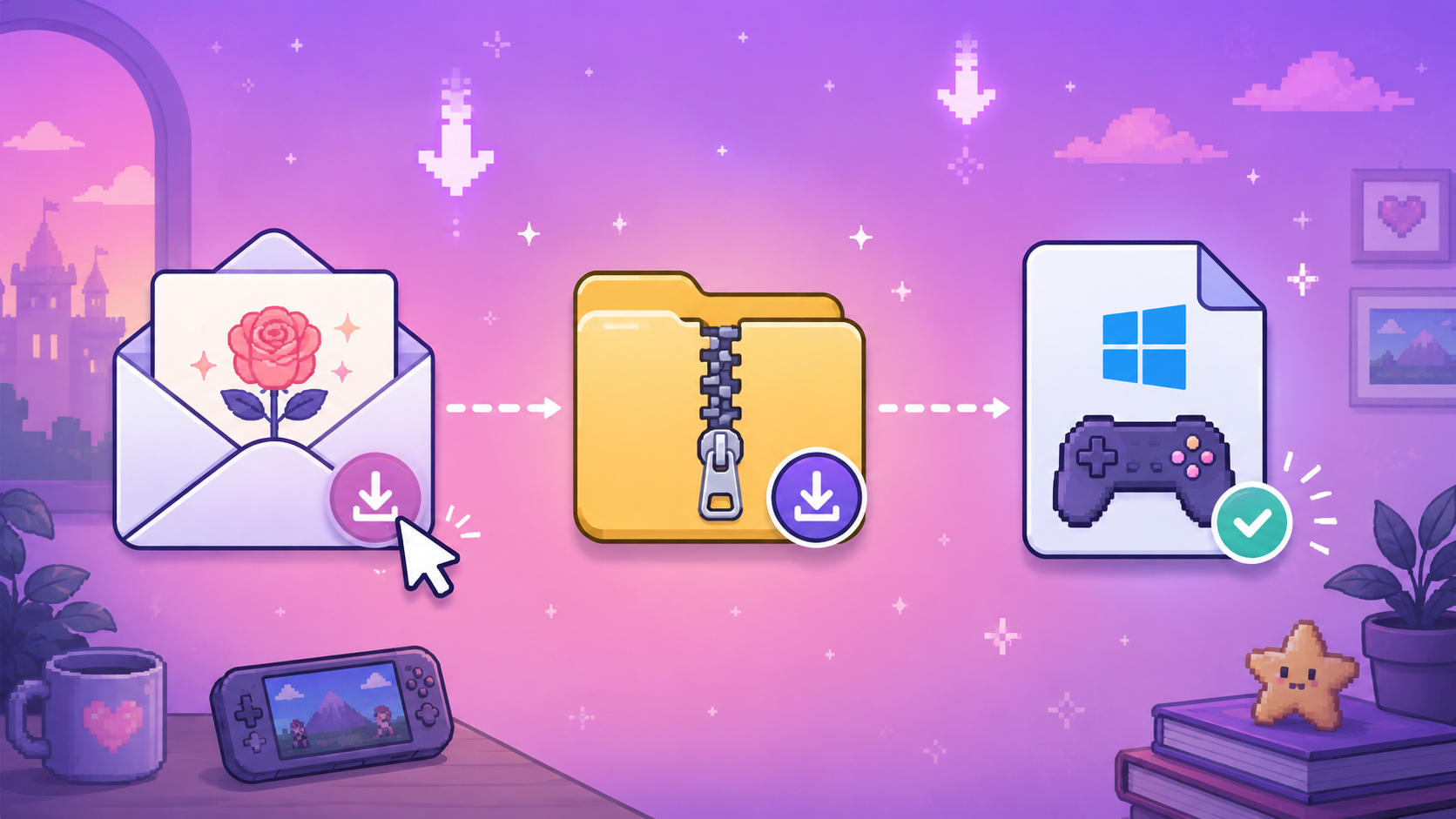
You've built something in Rosebud. Now you want it on your computer — a real .exe you can double-click. Here's how to get there.
This guide covers everything from clicking the Download button to the email landing in your inbox. If you've never downloaded a project from Rosebud before, start at the top.
Before you start
A few things to check before you click Download.
You need to be on a paid plan. The Windows .exe download and Steam export are gated behind Rosebud's paid plans — they aren't included on the free tier. If you're on free, upgrade first.
Your project should work end-to-end in the browser. The download wraps your current project into an executable — if something is broken in the browser, it'll be broken in the .exe.
Your email on Rosebud needs to be correct. Builds get emailed to the address on your account.
Set aside a few minutes. Builds usually take 2 to 5 minutes. The email lands when the build is ready, not when you click Download.
Step 1: Open your project
Sign into Rosebud and open the project you want to download.
Step 2: Click Download
In the code tab section header at the top right of the screen, look for the Download button. Click it.
Step 3: Confirm the build
A small confirmation modal will appear showing the name of the project being packaged and the email address the build will be sent to. Make sure the email is right. Then click Start build.
Step 4: Close the tab and go do something else
The build happens on our servers — you don't need to keep the tab open. You can close Rosebud, switch to another tab, or get a coffee. The email arrives when the build is ready.
Step 5: Find the email
Look for an email from Rosebud with the subject "Your Rosebud build is ready." It contains a download link for the zip, a short note about what's inside, and a heads-up about Windows SmartScreen.
If you don't see the email after 10 minutes, check spam. If it's still not there, double-check the email on your Rosebud account.
Step 6: Download the zip
Click the download link in the email. The zip file should download from your browser. File sizes vary by project but most fall in the 80 to 250MB range.
Step 7: Unzip
Right-click the zip and choose Extract All on Windows, or double-click on Mac (note: the .exe itself only runs on Windows).
Inside the unzipped folder you'll find your game's executable, the supporting files it needs (assets, audio, runtime libraries), and an editable copy of the project source.
Keep the folder intact. The .exe expects its sibling files. Don't move the .exe out of the folder.
What to do next
You now have your game as a Windows build. The next step is launching it. See: How to Run Your Rosebud .EXE on Windows.
If you want to share your game with friends, you can compress the unzipped folder back into a zip and send it via Dropbox, Google Drive, or any file-sharing service.
If you want to sell your game, the next step is publishing to itch.io or Steam. See: From Rosebud to Steam.
Troubleshooting
The email didn't arrive. Check spam. Check the email on your Rosebud account. If both are correct, retry the build — sometimes individual builds fail server-side.
The build failed. You'll get a different email if the build hits a server error. Try again. If it fails twice in a row, ping us in Discord with your project link.
The Download button is grayed out. You're likely on the free tier — the download feature unlocks on Rosebud's paid plans.
The zip won't extract. Make sure your hard drive has enough free space (rule of thumb: 2x the zip size). On Windows, try a different unzip tool if the built-in extractor fails.

Andi Bucescu
Andi is the Head of Marketing at Rosebud, where she writes about the intersection of AI, creativity, and brand storytelling. She explores how generative AI is reshaping marketing strategies and creative workflows, with a focus on making complex technology accessible and cutting through the noise of modern campaigns. Her perspective is informed by undergraduate research on effective social media content and consumer psychology.