


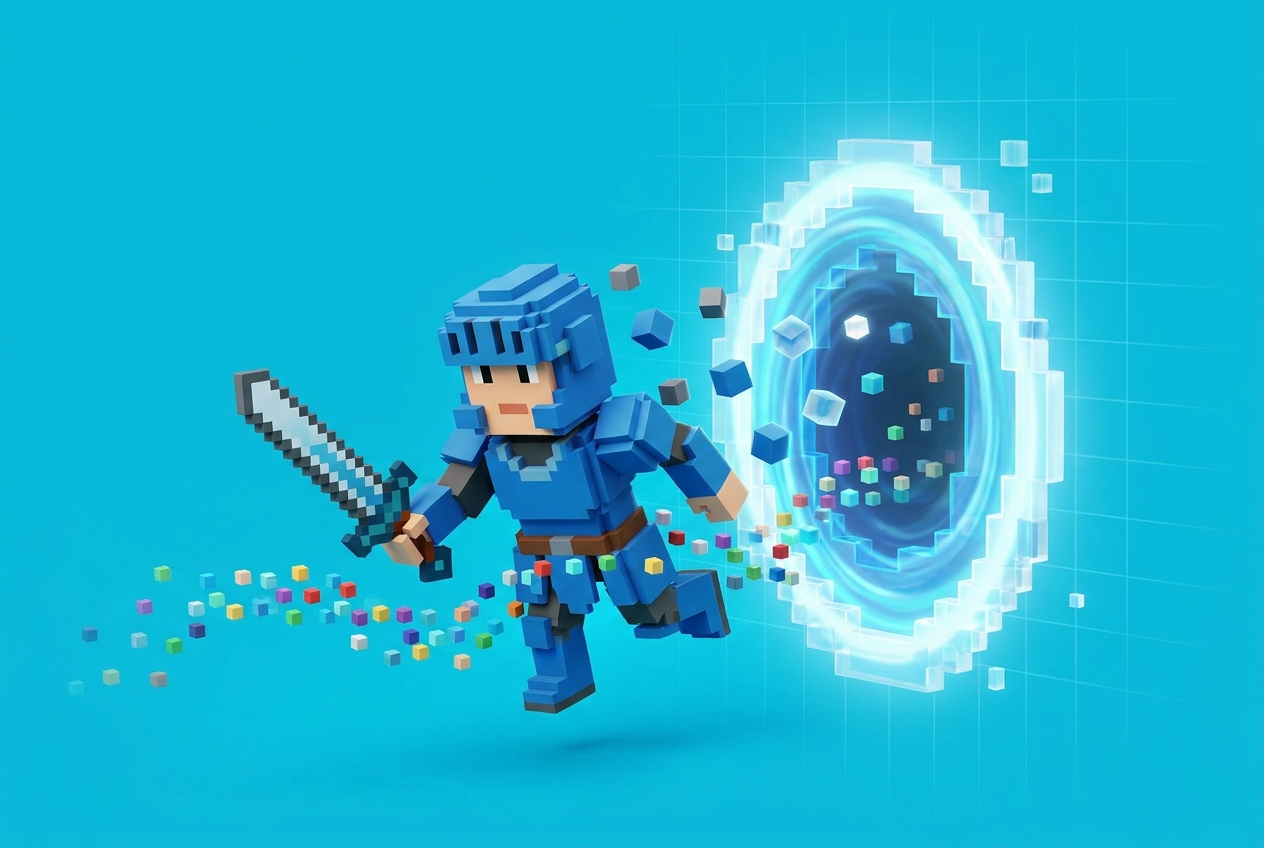
How to Bring 3D Assets Into Your Voxel World: The Complete Rosebud Import Guide
Why this matters
Rosebud's AI is extraordinary at generating code, worlds, and mechanics from prompts. But for many voxel games, you'll want hand-crafted or AI-generated assets — a specific character, a custom sword, a landmark building — that you bring in from outside.
The good news: Rosebud accepts almost every common 3D format, and the workflow is drag-and-drop.
By the end, you'll know exactly which tool to use for which job, and how to get the file into your game in under two minutes.
What Rosebud accepts
Rosebud's Assets tab accepts:
- .glb / .gltf — recommended. Bundles mesh + textures + animations in one file.
- .obj — geometry only. Good for static props.
- .fbx — supported, useful for rigged/animated models.
- .blend — Blender files.
- Images: PNG, JPG, WebP — for textures, UI, 2D sprites.
- Audio: MP3, WAV — for music and SFX.
Rule of thumb: if you have a choice, always export as GLB. It's the cleanest, smallest, most compatible real-time format.
Path 1 — MagicaVoxel → GLB → Rosebud
MagicaVoxel is the industry standard for voxel art. It outputs .vox natively, but Rosebud needs GLB or OBJ.
Workflow
- Design or download your model in MagicaVoxel (free at ephtracy.github.io)
- Use File → Export → choose OBJ (keeps UVs + colors)
- (Optional) Open the OBJ in Blender → export as GLB for smaller file size
- In Rosebud: Assets tab → drag and drop the GLB onto the editor
Tip
Pipe MagicaVoxel → Blockbench (browser-based, free) → export as GLB directly. Blockbench handles voxel models natively and saves you the Blender step.
Path 2 — Blockbench (browser) → GLB → Rosebud
Blockbench is free, runs in your browser at blockbench.net, and exports directly to glTF/GLB.
Workflow
- Open Blockbench in a new tab
- Create or import a model (supports .bbmodel, .json, .vox, .obj, .nbt)
- File → Export → glTF Model — choose GLB for a single-file bundle
- Drag the GLB into Rosebud's Assets tab
- In your game prompt: "Replace the player character with the model I just uploaded"
Blockbench is especially good because it reads Minecraft Bedrock and Java model formats directly, so if you're porting a Minecraft model, you can skip conversion entirely.
Path 3 — Kenney Voxel Pack (free CC0)
Kenney.nl is the de facto home for free game assets. The Voxel Pack includes 190 CC0 voxel models: characters, vehicles, buildings, props.
Workflow
- Download the pack (it's a single .zip)
- The pack ships with .fbx, .obj, and PNG textures — all Rosebud-compatible
- Drag the file(s) you want into the Assets tab
- Prompt: "Place 10 Kenney voxel trees randomly across the terrain"
Related free packs
- Quaternius — 1,411 free low-poly CC0 models
- Poly Pizza — 6,000+ free low-poly models
- Sketchfab CC0
- itch.io Voxel tag
Path 4 — Tripo3D (AI, Rosebud-integrated)
Tripo3D is officially integrated with Rosebud — the fastest AI-to-game pipeline available.
Workflow
- Go to Tripo3D
- Prompt: "A voxel-style dragon with red scales and golden horns"
- Tripo has a voxelization mode that auto-converts to Lego/blocky style
- Download as GLB
- Drag into Rosebud Assets
Full walkthrough: Build your 3D game using Tripo.
Path 5 — Meshy (AI, voxel preset)
Meshy has an explicit voxel art style preset and a low-poly mode.
Workflow
- Pick your prompt → select the voxel style preset
- Generate (free tier: ~5/month)
- Export as GLB
- Drop into Rosebud
For characters and props, Meshy produces the cleanest voxel-look output. Full walkthrough.
Path 6 — Sketchfab CC0 downloads
Sketchfab has millions of 3D models; filter by the CC0 tag for free-for-any-use assets.
Workflow
- Filter Sketchfab by CC0 license
- Click Download 3D Model → pick glTF
- Drag the unzipped .glb into Rosebud
Warning: not all Sketchfab models are CC0. Always check the license before using in a game you plan to publish.
Format cheat sheet
- .vox (MagicaVoxel) → Export as .obj, or open in Blockbench and export .glb
- .bbmodel (Blockbench) → Export as .glb
- .blend (Blender) → Export → glTF 2.0 → .glb
- .fbx → Usually works directly; re-export to .glb for smaller size
- .obj + .mtl + .png → Zip them or convert to .glb in Blender
- .schematic (Minecraft) → Load in Blockbench or FileToVox, export as .obj or .glb
Licensing: read this before you publish
When you import an asset, you inherit its license:
- CC0 — free for any use, including commercial, no attribution. Kenney, Quaternius, Poly Haven.
- CC BY — free, must credit the creator.
- CC BY-NC — free for non-commercial only.
- Royalty-free — paid once, use forever.
- All rights reserved — don't use unless you have explicit permission.
Rule of thumb for shipping: only use CC0 or assets you've explicitly paid for.
Troubleshooting common import errors
"Model imported but shows as a black/purple block"
Usually a texture path issue. Re-export as GLB (which bundles textures) instead of OBJ + PNG separately.
"Model is huge or tiny"
Scale mismatch. Prompt Rosie: "Scale my imported model to 1 block unit" or use the transform controls.
"Animations don't play"
Make sure the model was exported with animations (GLB supports them; OBJ does not).
"Model is laying on its side"
Coordinate system mismatch. Blender uses Z-up; Rosebud uses Y-up. In Blender, apply rotation before export.
"Performance dropped after importing"
Voxel and low-poly models should be under ~5k triangles each. Decimate in Blender if higher.
The ideal voxel game production pipeline
- World terrain — generated by Rosebud from a prompt
- Buildings and landmarks — hand-crafted in MagicaVoxel or Blockbench → .glb
- Characters — Tripo3D or Meshy (voxel preset) → .glb
- Props and filler — Kenney Voxel Pack + Quaternius
- Custom signage/textures — Craftbench or PixelVibe → PNG
- Everything combined — dragged into Rosebud's Assets tab, placed with prompts
Every step has a free tool option. You can build a fully custom voxel game without paying for a single asset.
FAQ
What's the best format for importing into Rosebud?
GLB. It bundles mesh, textures, and animations in one file with no path issues.
Can I import Minecraft models directly?
Yes, through Blockbench. Open the .bbmodel or .json → export as .glb → import to Rosebud.
Can I import rigged characters with animations?
Yes, via GLB or FBX. Make sure animations are named and exported with the mesh.
Keep building
- Pillar: How to make a Minecraft-style game in 2026
- Previous: The Ultimate AI Tool Stack for Voxel Games
- Next: 20 Ways to Make Your Voxel World Unique
- Deep-dive: How to animate 3D models for games

Andi Bucescu
Andi is the Head of Marketing at Rosebud, where she writes about the intersection of AI, creativity, and brand storytelling. She explores how generative AI is reshaping marketing strategies and creative workflows, with a focus on making complex technology accessible and cutting through the noise of modern campaigns. Her perspective is informed by undergraduate research on effective social media content and consumer psychology.