


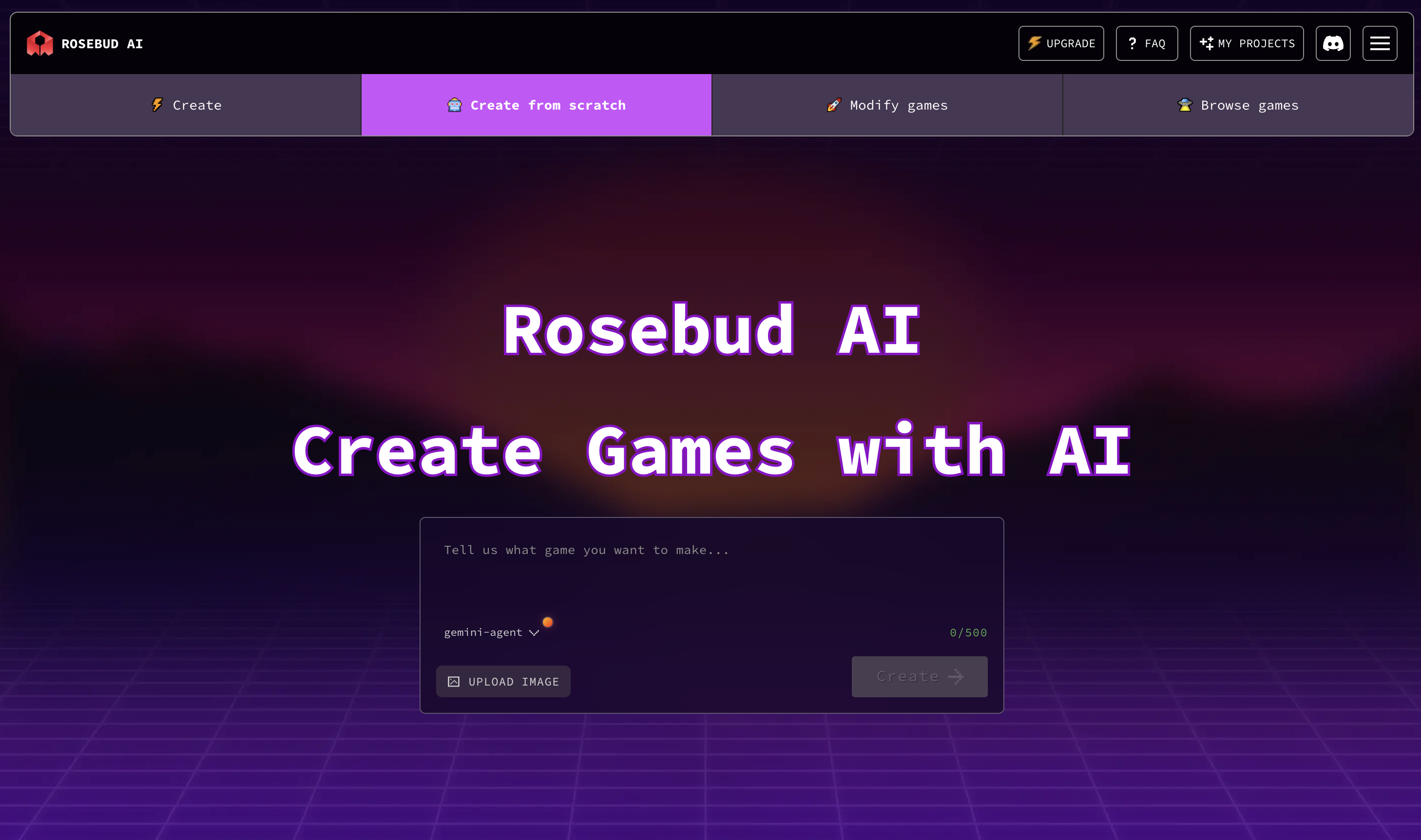
The Rosebud AI interface lets you create games by prompting an AI, previewing changes in real time, managing assets, and publishing playable links, all in one editor. Read on to understand how this works.
If you’re new to Rosebud AI, this Rosebud AI guide walks you through the entire interface so you know exactly where to start, what each section does, and how to go from idea to playable game.
Rosebud is built around a simple workflow: Prompt → Publish → Play. Once you understand the interface, you can start building games in minutes.
The Rosebud Homepage: Where Projects Begin
When you first open Rosebud AI, you’ll land on the homepage. This is split into two main areas:
Home
The Home section shows:
- Trending projects from other creators
- Featured community games
- Starter templates you can build from
Scroll down to "Browse Games." You can click Play to try any game instantly in full-screen mode, or click Create From to make your own editable copy and learn by experimenting.
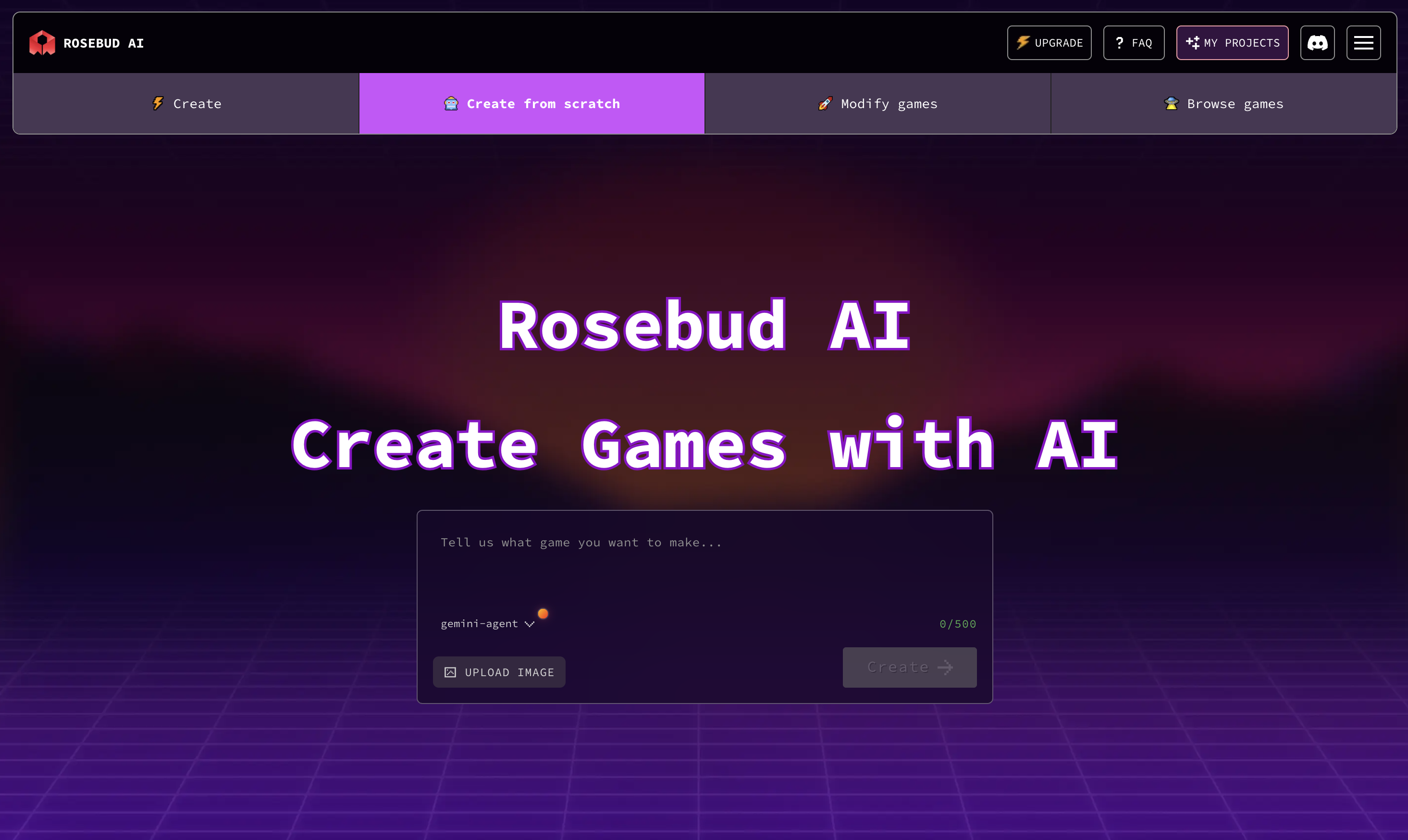
My Projects
The My Projects section contains:
- All games you’ve created or cloned
- Your username (which you can edit)
- Quick access to ongoing work
Cloning projects is one of the best ways to learn how games are built in Rosebud.

Getting Help and Community Support
At the top of the interface, you’ll find:
- FAQ – guides, tutorials, and common questions
- Discord – the best place to get help, share games, and collaborate
Sharing your game on Discord can even get it featured in the Trending section.
Logging In and Creating a Project
To start building:
- Click Log In in the top-right corner
- Sign in with your Google account
- Choose a template or start a new project
Once logged in, you can type a prompt and you’ll be taken to the creation interface, where all the magic happens.
The Creation Interface Explained
The creation screen is where you’ll spend most of your time. It’s designed to keep everything visible and easy to understand.
Game Window
This is the live preview of your game. You’ll see changes here as you apply updates and reload the project.
Use Full Screen mode to experience the game the same way players will.

Chat Tab (Where You Build the Game)
The Chat tab is the heart of Rosebud.
This is where you:
- Write prompts to Rosie, the AI coding assistant
- Describe mechanics, characters, and changes
- Ask for fixes or improvements
Rosie responds by generating and updating the game’s code based on your instructions.
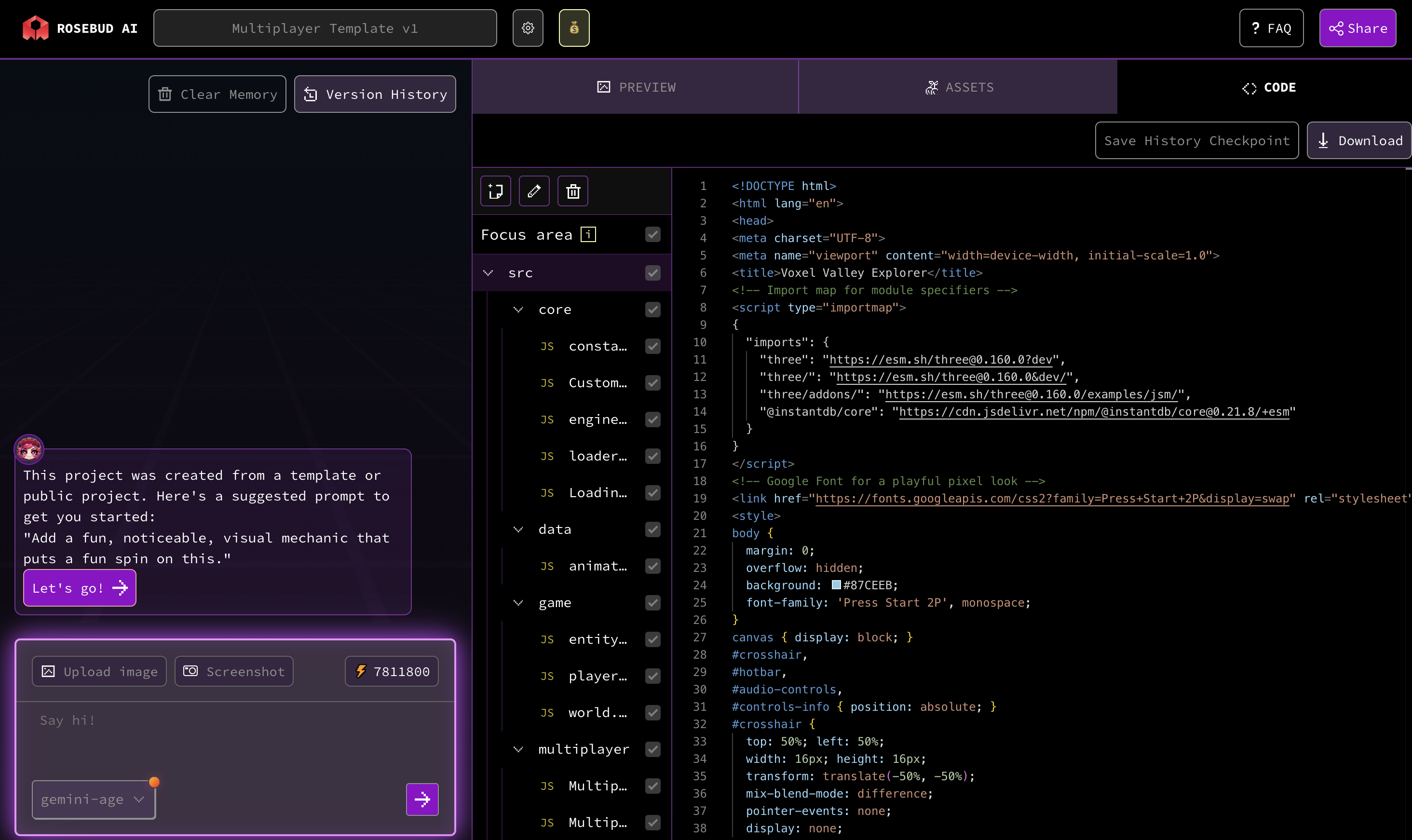
Code Tab (See What’s Under the Hood)
The Code tab shows the actual code running your game.
Here you can:
- See exactly what Rosie changed
- Learn how mechanics are implemented
- Make manual edits if you want
You don’t need to touch the code to use Rosebud, but it’s there if you want deeper control or want to learn by reading.
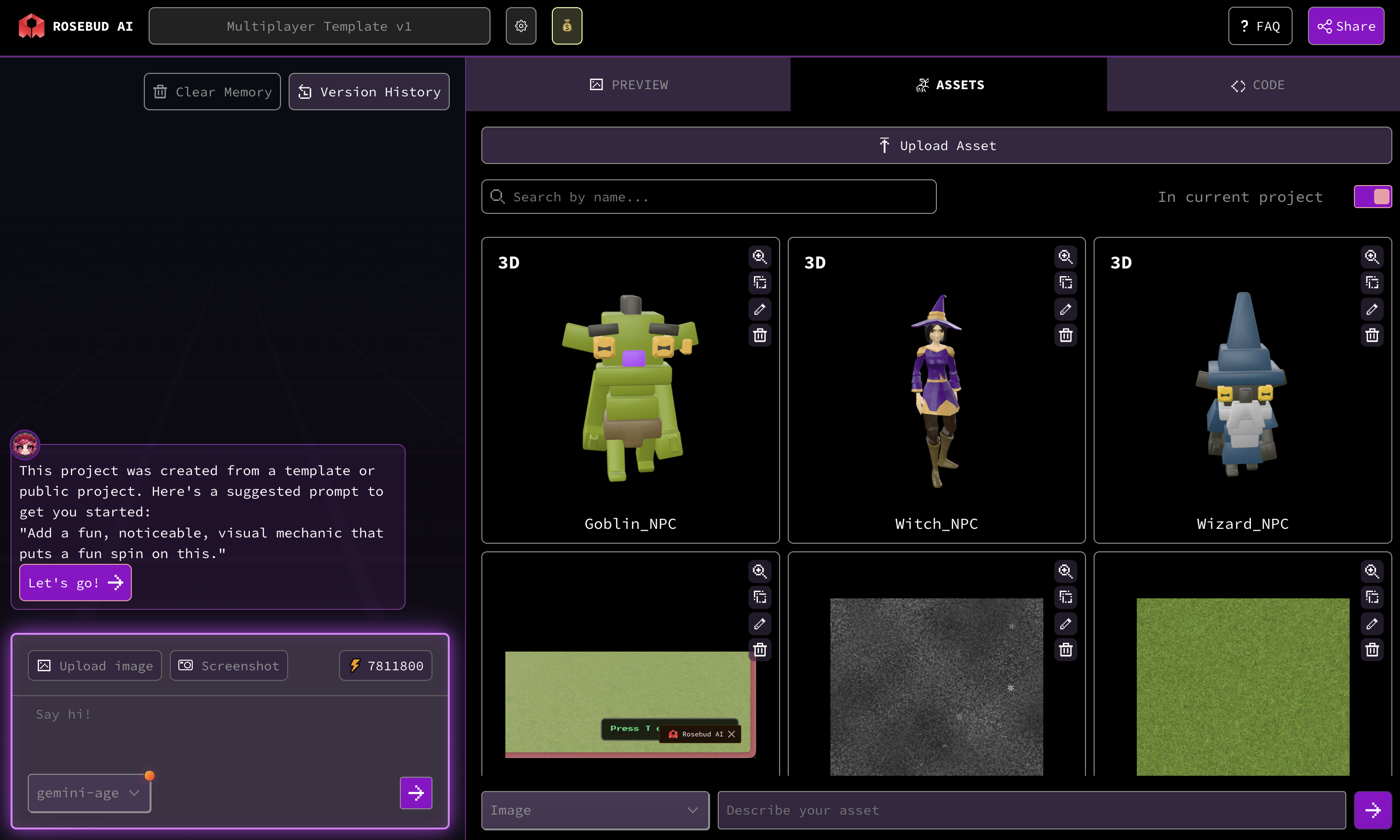
Assets Tab (Generate and Manage Assets)
The Assets tab lets you generate and manage game assets.
You can:
- Generate assets using AI
- Choose a visual style
- Insert assets directly into your game
This makes it easy to customize visuals without leaving the editor.
Publishing and Sharing Your Game
When your game is ready to share, click Publish.
From here, you can:
- Set a game title
- Upload a thumbnail image
- Write a description
Once published, you’ll get a shareable link. Anyone can play your game in their browser, even without a Rosebud account.
Why This Interface Makes Game Creation Faster
Rosebud’s interface is designed to:
- Remove setup friction
- Keep feedback loops short
- Encourage experimentation
- Support beginners and advanced users alike
You’re never far from seeing your idea turn into something playable.
Start Building with Confidence
Now that you understand the interface, you’re ready to start creating.
👉 Try it yourself on Rosebud AI
Prompt, publish, and play your first game today.

Andi Bucescu
Andi is the Head of Marketing at Rosebud, where she writes about the intersection of AI, creativity, and brand storytelling. She explores how generative AI is reshaping marketing strategies and creative workflows, with a focus on making complex technology accessible and cutting through the noise of modern campaigns. Her perspective is informed by undergraduate research on effective social media content and consumer psychology.