


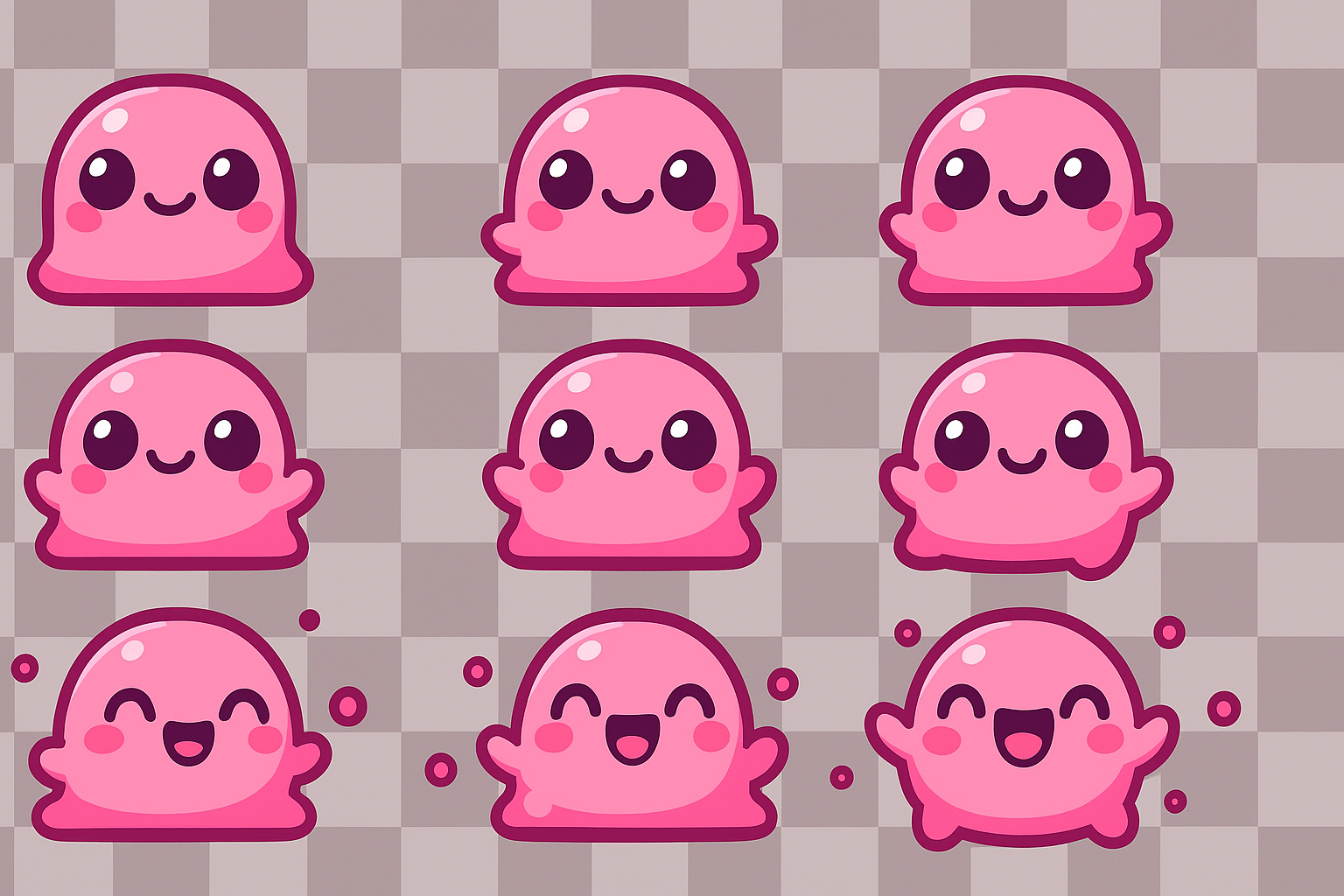
How to Create a Sprite Sheet with AI using Google Gemini and Nano Banana ( Easy Guide ! )
Creating sprite sheets no longer requires manual drawing or complex animation software. With Google Gemini and Nano Banana, you can generate full character animations, item sheets, and motion sequences using simple text prompts. Here’s the fastest and most efficient workflow.
1. Define Your Sprite Sheet
Start by describing what you want to generate. Include:
- Character or object
- Number of frames
- Animation type (walk, run, jump, idle, attack)
- Camera angle (side-view, top-down, 3/4 view)
- Layout (horizontal strip, vertical strip, 4×4 grid)
- Transparent background
Example prompt:
“Create a 6-frame side-view walk cycle of a hero character. Horizontal sprite sheet. Transparent background. Consistent proportions.”
2. Generate Frames with Gemini + Nano Banana
- Open Gemini
- Request Nano Banana or Nano Banana Pro
- Paste your prompt
- Generate the sprite sheet
Nano Banana will produce a full sheet or individual frames depending on your instructions.
If you want individual frames instead of a sheet, say:
“Generate 6 separate frames for a walk animation.”

3. Refine and Regenerate
If proportions, poses, or spacing look off, adjust your prompt:
- “Align all frames on the same baseline.”
- “Keep lighting consistent.”
- “Match exact character proportions.”
Regenerate until the animation looks clean and fluid.
4. Export as PNG
Always export as PNG to keep transparency.
For multi-frame sheets, verify the grid is clean and evenly spaced.
5. (Optional) Clean Up Frames
Use a simple editor if needed to:
- Fix stray pixels
- Adjust spacing or padding
- Crop frames to exact dimensions
This step takes minutes compared to manual sprite creation.
6. Import Into Your Game Engine
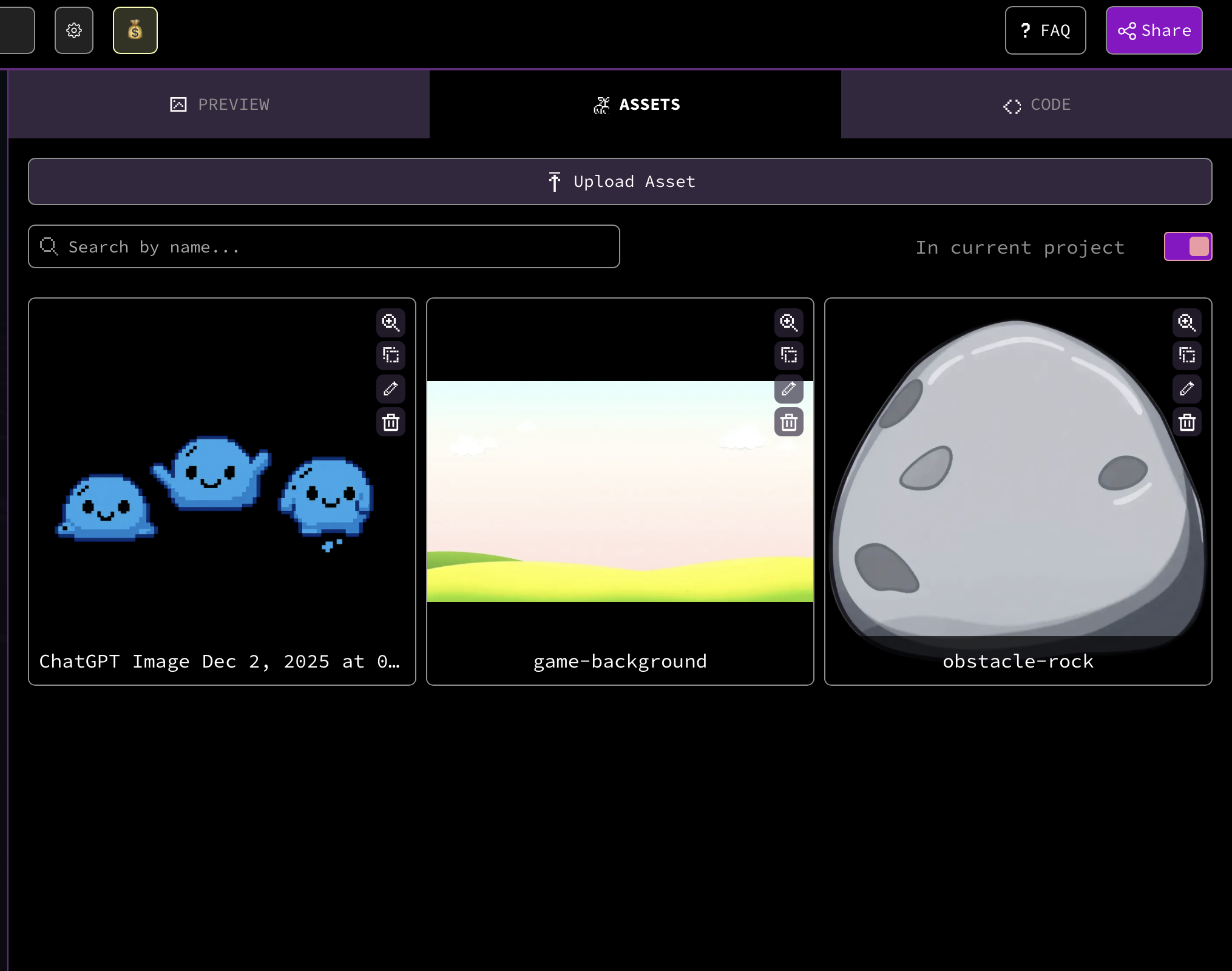
Drag your sprite sheet into any engine (Unity, Godot, Unreal 2D, Phaser, Rosebud AI etc.).
Set:
- Frame width / height
- Number of frames
- Animation speed
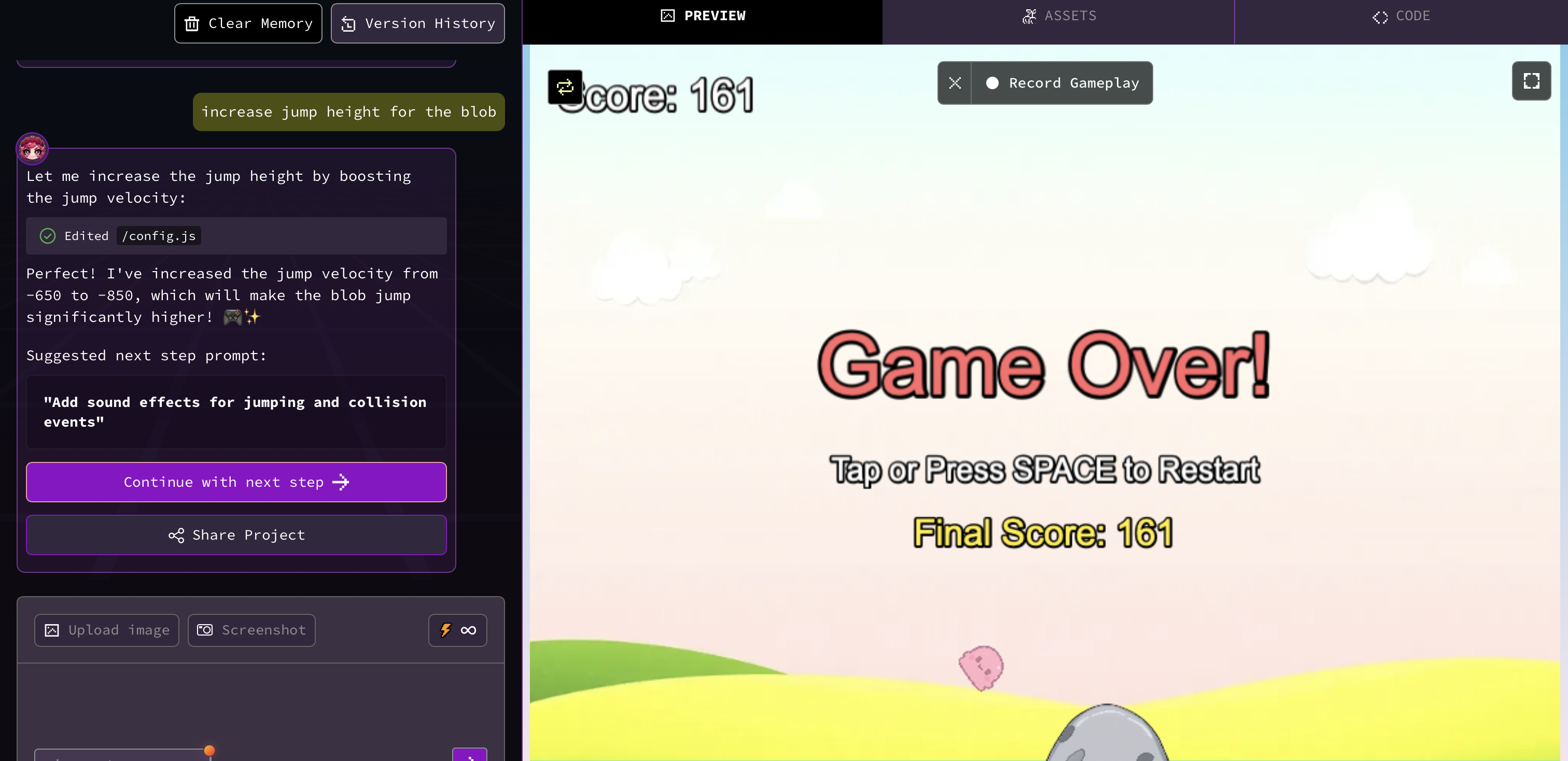
If you want to implement this in a game-maker like Rosebud AI, here’s an example of a game I created called “Blob Jump Adventure”, built using a sprite: https://rosebud.ai/p/dd4a85f8-ca13-4240-b847-d5401fc1b377
Summary
To create sprite sheets with Gemini and Nano Banana, you:
- Describe your character and animation
- Generate the sheet with a prompt
- Refine the output
- Export as PNG
- Clean up if needed
- Import into your game engine
This workflow produces consistent, clean, animation-ready sprite sheets in seconds — perfect for fast prototyping or full 2D game production.

Patrick Moumiet
Patrick is a marketer at Rosebud with a background as a content creator and social media strategist. He has launched courses and coaching programs in social media marketing and content creation, coaching 500+ large-scale influencers customers. On the Rosebud blog, he writes about consumer AI and how to make money with AI, exploring ways to combine state-of-the-art models with Rosebud’s creative tools.