


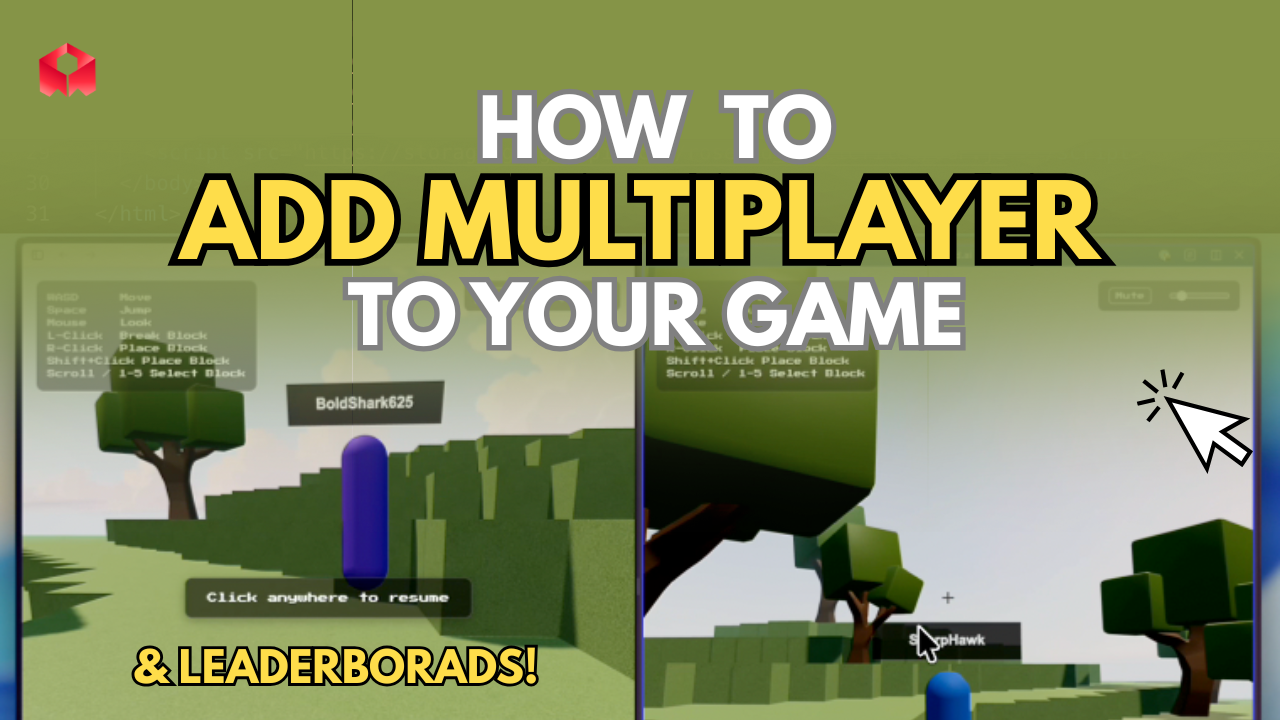
How to add multiplayer to your game
Multiplayer can feel intimidating because it usually comes with servers, databases, and lots of setup. On Rosebud, you can start with a multiplayer template that already works, or add multiplayer to an existing single-player project by creating two config files and pasting in a unique app ID.
This guide covers both paths. You can read it, watch the video, or do both.
Part 1: Starting on the right foot (new multiplayer game)
If you are starting fresh and you know you want a 3D multiplayer game, the easiest path is to remix a multiplayer template.
Step 1: Start from the 3D Multiplayer template
Open the template here:
3D Multiplayer Template v1 🕹️ Rosebud AI Vibe Code Games
https://rosebud.ai/p/3d-multiplayer-template-v1
When you open it, you might see blocks placed around the world or other players moving. That is normal. Many people have played it over time, so the shared version looks “lived in.”
To see multiplayer working right away:
- Open the game in two tabs, or on two devices
- Join the same world
- Try finding your other player
- Send a message in chat
Now remix the template so you get your own copy. Use the Remix button on the page.
Step 2: Understand what remixing creates
When you remix the template, your copy starts clean. You will not see the old blocks or random players from the public template.
Behind the scenes, remixing creates a dedicated backend for your project. You can think of it like this:
- Backend: the shared “truth” that should be the same for all players (running on a server)
- Frontend: what exists only on a single player’s device (camera, UI, local effects, single-player logic)
You do not need to be an expert in servers to use this. The important part is knowing where multiplayer features should live.
Step 3: Find your multiplayer app ID
To see the unique ID for your multiplayer project:
- Open the Code tab
- Find the file called
instant_db_config.js
That file contains your project’s unique multiplayer app ID.
You may also notice a file called instant_db.md. This file is the key reference that helps Rosie understand how to add multiplayer features correctly.
Done (for new projects)
At this point, you can ask Rosie to transform the game into whatever you want. When you are ready to add a multiplayer feature, describe the feature and tell Rosie to read instant_db.md.
Example prompt you can copy:
Hi Rosie! Please add a leaderboard to this game. Players should enter their names when they first start playing. After every round the leaderboard should update with their new score. Please read instant_db.md for reference.Part 2: Adding multiplayer to an existing game (or making a 2D multiplayer game)
If you already have a game, you can still add multiplayer. The key is creating the multiplayer config files in the correct location and then adding a valid app ID.
Follow these steps carefully to avoid setup issues.
Step 1: Open your existing game
Open the edit page for your project like you normally would.
Step 2: Create the multiplayer config files (crucial)
In the Code tab, create two empty files in the root of your project:
instant_db_config.jsinstant_db.md
These must be in the root directory. Do not move them into a folder.
Now paste the following into instant_db_config.js:
// instant_db_config.js - InstantDB configuration
// This file is automatically generated when cloning a project
export const INSTANT_DB_APP_ID = '';
Then paste the following into instant_db.md:
# InstantDB Integration Reference
A comprehensive guide for integrating InstantDB into real-time multiplayer applications and games.
## ⚠️ CRITICAL: File Location Requirements
**`instant_db_config.js` MUST remain in the root directory and will break if moved to a subfolder.**
- ✅ **Keep in root**: `instant_db_config.js` and `instant_db.md`
- ✅ **Can organize**: Other multiplayer files (managers, avatars, etc.) can go in a dedicated folder like `src/multiplayer/`
- ❌ **Never move**: The config file relies on import paths that expect it at root level
**Why this matters**: The import statement `import { INSTANT_DB_APP_ID } from './instant_db_config.js'` or `'../../instant_db_config.js'` breaks if the config file is relocated, causing multiplayer functionality to fail completely.There are a few more essential code bits that you should explore. To view the full set of instructions, go to this guide.
Step 3: Get a unique ID (crucial)
Right now your INSTANT_DB_APP_ID is empty. Since this project did not start from a multiplayer template, Rosebud did not automatically create an app ID for it.
To get an ID:
- Open the 3D Multiplayer Template v1
- Remix it (you do not need to use the remix for anything)
- In the remix, open the Code tab
- Find
instant_db_config.js - Copy the ID inside the quotes
- Paste it into your real project’s
instant_db_config.js
Your file should look like this (with your own ID):
// instant_db_config.js - InstantDB configuration
// This file is automatically generated when cloning a project
export const INSTANT_DB_APP_ID = '69037243-307d-4849-844e-XXXXXXXXXXXX';
Important notes:
- Use that ID only for this game
- Do not share it publicly
- Save the file after pasting it
Done (for existing projects)
After the files exist and your app ID is set, you can ask Rosie to add multiplayer features. Always tell Rosie to read instant_db.md so the implementation matches the multiplayer setup.
Example prompt:
Hi Rosie! Please add multiplayer chat to this game. Players should enter their display names when they first start playing and then should be able to chat with anyone else online in a global chat. Please read instant_db.md for reference.
What to build first (multiplayer features that work well)
Here are a few multiplayer features that are great first upgrades because they create “shared moments” fast:
- Global or room chat (players can talk immediately)
- Leaderboards (persistent competition across sessions)
- Shared world changes (placing blocks, building, collaborative edits)
- Player presence (seeing other players move around)
If you are not sure which to start with, pick chat or a leaderboard first. They are easy to test and easy to understand.
Quick troubleshooting checklist
If multiplayer is not working, check these first:
instant_db_config.jsis in the project root (not inside a folder)instant_db.mdis also in the rootINSTANT_DB_APP_IDis not empty- You saved the file after editing
- You tested by opening the game in two tabs or two devices
Try it yourself on Rosebud AI →
Ready to add multiplayer to your game? Open your project, set up instant_db_config.js and instant_db.md, then tell Rosie what multiplayer feature you want.

Andi Bucescu
Andi is the Head of Marketing at Rosebud, where she writes about the intersection of AI, creativity, and brand storytelling. She explores how generative AI is reshaping marketing strategies and creative workflows, with a focus on making complex technology accessible and cutting through the noise of modern campaigns. Her perspective is informed by undergraduate research on effective social media content and consumer psychology.